Post-recording commands
Post-recording commands let you execute external programs right after a recording is finalized. The created file can be passed as an argument to the external program.
Some use cases include:
copying the file to a backup location.
converting the recorded file to a different format.
running a post-processing application to transform the video in some way or extract images.
Command editor
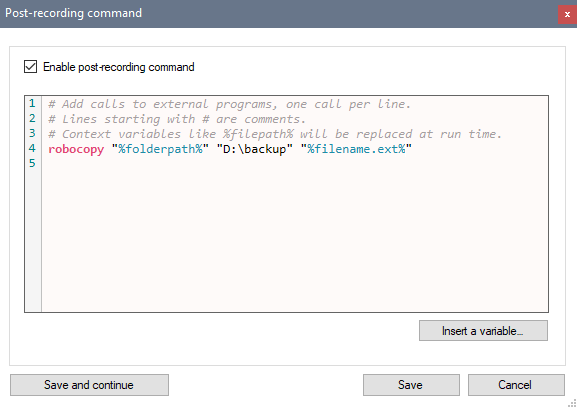
To enable post-recording commands right click the background of a capture screen and choose the menu . Check the Enable post-recording command checkbox and enter the command line to execute.
You can call multiple programs, add each command on its own line. The commands are executed sequentially and the whole thing runs in a background thread.
Lines starting with # are treated as comments and ignored.
Variables
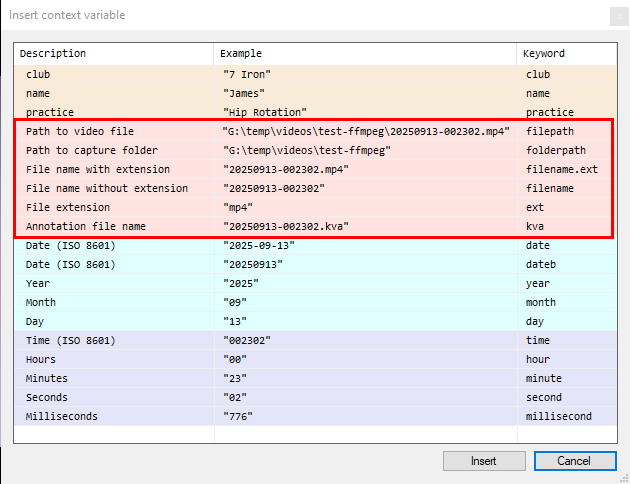
Use the button Insert a variable to insert context variables that will be replaced with actual values when the command is executed. In addition to the user-defined variables and the date and time built-in variables, the following are available in this context:
Variable |
Meaning |
|---|---|
|
The full path to the video file. |
|
The full path to the capture folder containing the video file. |
|
The name of the recorded file including the extension. |
|
The name of the recorded file without the extension. |
|
The extension by itself, without the leading dot. |
|
The name of the KVA file created alongside the recording. |
FFmpeg
Kinovea ships with the ffmpeg executable that can be used for video conversion and compression.
See the documentation of ffmpeg at https://ffmpeg.org/ for usage instructions.
Example command that encodes the recorded video using the H.264 codec:
ffmpeg -i "%filepath%" -vcodec libx264 "%folderpath%\%filename%_compressed.mp4"