Saving and loading annotation files
Annotations are saved in KVA files. These are XML files with a .kva extension.
The term annotation in Kinovea has a broad meaning and encompasses anything that is not directly available in the video file itself. The KVA file stores the following data:
key images timeline positions, names, color and comments
drawings attached to key images and their properties
trajectories, stopwatches, clocks and counters.
timelines of tracked objects
image-level overrides such as aspect ratio, rotation or mirroring
stabilization settings
spatial calibration
custom time origin
capture frame rate
user override frame rate
working zone start and end
the coordinate system object parameters
background layer opacity and color
kinogram configuration
camera motion data
lens distortion configuration
Saving annotations
To save the current annotations use the menu or the shortcut CTRL + S.
The preferred workflow is to save a KVA file alongside the video as a “sidecar” file. This way the annotations are automatically loaded the next time you open the video. For example if the video file is video.mp4 save as video.kva. This is the default option when saving.
Kinovea lets you choose a different name or location but you will have to manually load the annotations each time you open the video.
Annotations are typically only relevant to the video they were created on, but it is possible to import them into other videos as a way to share key image templates, calibration data or other configuration options. This can be interesting for videos filmed during the same session with the same camera setup.
Loading annotations
To load an external annotation file into an opened video use the menu .
The imported annotations are merged together with the existing annotations you might have already added to the video.
If the imported annotations were created on a different video, a conversion step may take place to adapt the drawings dimensions and time codes to the new image size and frame rate.
Loading external annotations can be used to import calibration settings between videos filmed during the same session without having to perform the calibration for every video.
Unloading annotations
To completely get rid of all annotations on the current video, including calibration data and other metadata, use the menu .
If instead you wish to delete all drawings but not the other metadata like image rotation, the simplest way is to delete all key images.
Default annotation file
To automatically import a specific annotation file into every video, you can define a default annotation file. On the video with the annotations you want to save as default, use the context menu or .
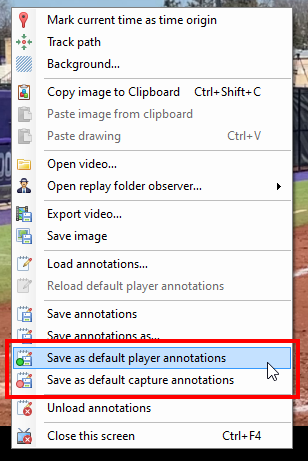
This will create a copy of the file, save it in the application data directory, and add a reference to this location in the preferences under or .
You can also directly edit this path and point it to a particular file of your choosing.
When opening a new video, if the file exists it will be automatically loaded before any other annotations. The sidecar KVA file will then be merged into it.
Capture annotations
When recording video from Kinovea, annotations are automatically created and saved in a sidecar KVA file next to the recorded video file. This file contains the capture frame rate, the camera rotation and mirror options, and the time origin is set to the start of the recording (ex: trigger time).
If drawings were added in the capture screen, they are also saved in this KVA file. It is possible to disable this behavior in .
In a capture-replay workflow, if these drawings are modified on the player side and saved, it is possible to send them back to the capture screen using the following menu on the capture screen . Only drawings on the first key image are reloaded, as the capture screen only has one key image.
This workflow can be useful in a self-training context: posture guides can be adjusted on the recorded video much easier compared to the live camera feed.