Key images
Video frames marked as key images show up in the key image panel below the viewport as well as in the annotation pane.
Key images can be used to quickly navigate to and annotate important moments of the video. They have a title, color and comments associated with them.
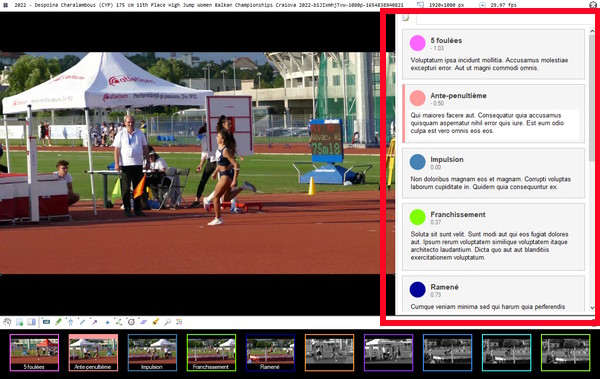
Key image panel under the video viewport
The key image panel under the video viewport has small thumbnails of all the key images.

Clicking a thumbnail will move the video to the time of the key image.
Key images that are outside the working zone are grayed out.
Annotation pane
The annotation pane can be opened by clicking the button in the tool bar or by double clicking a key image thumbnail in the bottom panel.
The key image tab in the annotation pane shows a card for each key image and is where you can change the title, color, and add comments to the selected key image.
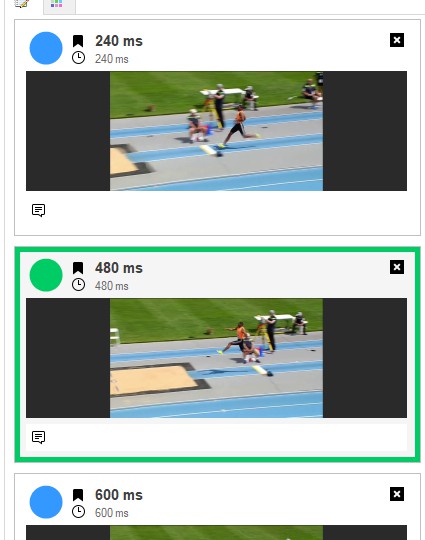
The toolbar at the top of the key image panel contains the following buttons:
Adds a new key image at the current time. |
|
Moves to the previous key image in the list. |
|
Moves to the next key image in the list. |
|
Counter |
Number of key images. |
Toggle button to show all key images or only those within the working zone. |
The key image cards supports the following functions:
Color box: Click to open a color picker to change the color of the key image.
Title: Click to edit the title of the key image.
Time: Time of the key image. This field is not editable.
Comment field: Click to add comments to the key image.
Delete: Deletes the key image.
Changing the time of a key image
To change the time of a key image you can drag its thumbnail from the bottom panel and drop it to a new position in the timeline.
Alternatively you can move the play head to the desired time, then right click the thumbnail and select to set the time of the key image to the current frame in the viewport.
Key image presets
It is possible to create key image presets to quickly add key images with a predefined title and color, using a keyboard shortcut.
To define the presets, go to the preferences via menu .
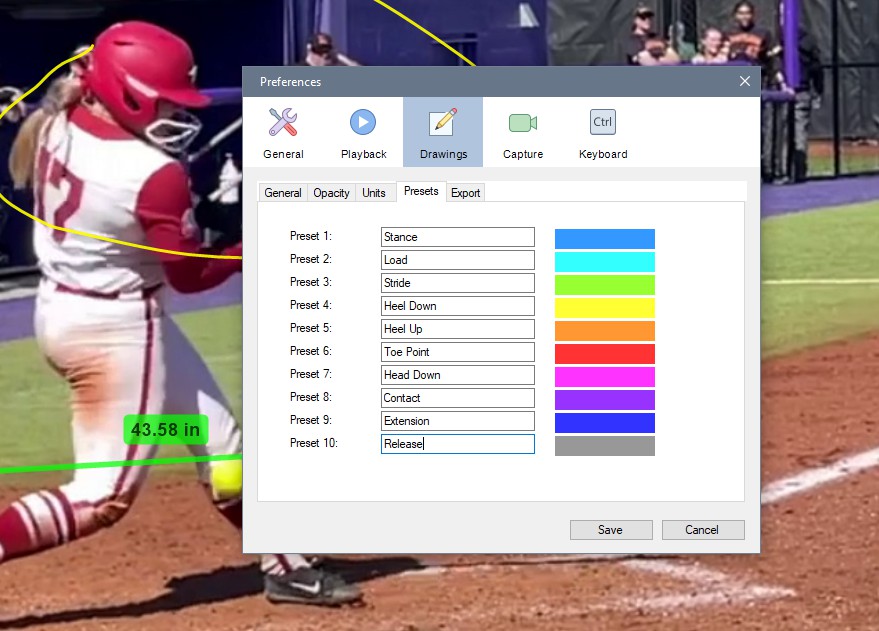
Tip
If you need to add key images with comments and drawings you can save a template annotation file and load it into the video when needed or set it as default annotation file. Then move the existing key images to their correct time.