Drawings properties
Drawings typically have the following properties
Name
Visual style (color, size, line type, etc.)
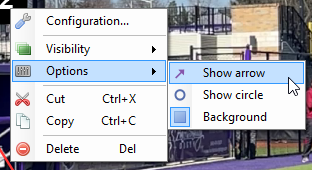
Options (tool-specific toggles)
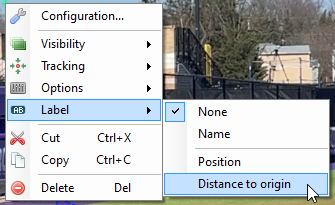
Measure label (for tools that are used to measure times, distances or angles)
Visibility settings (opacity and fading profile)
Name and style
To change the name and style of a drawing use the properties tab in the annotation pane. Click on the drawing to load it in the property editor.
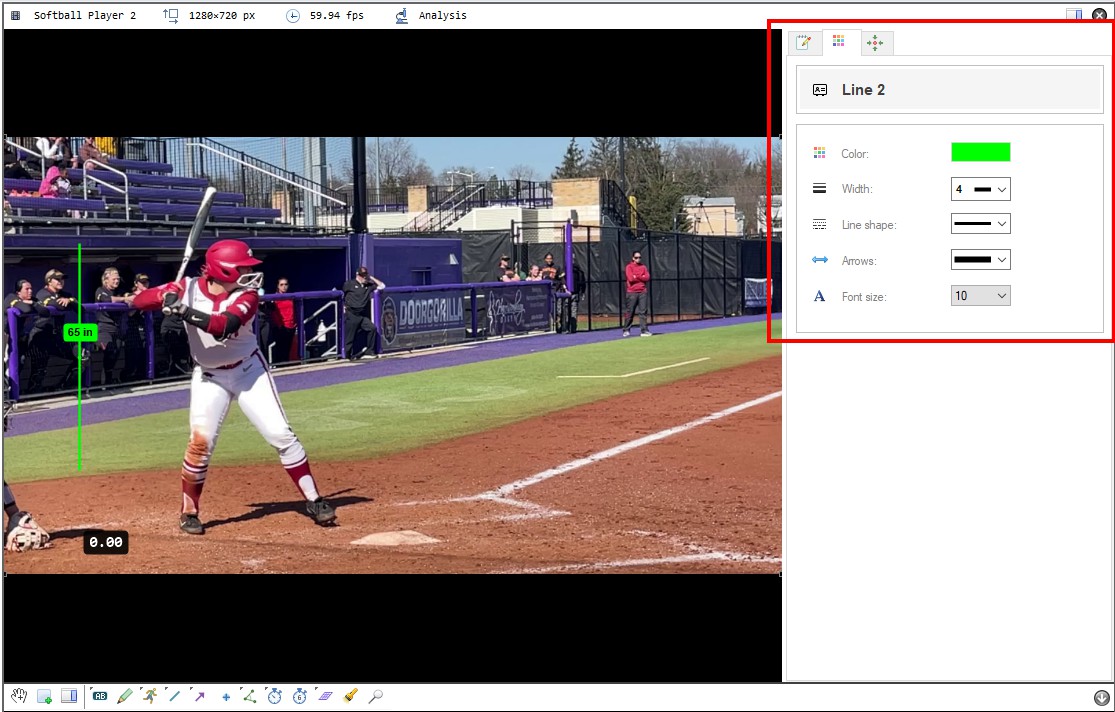
Note
When the style of a drawing is changed it becomes the default style for new drawings of the same type.
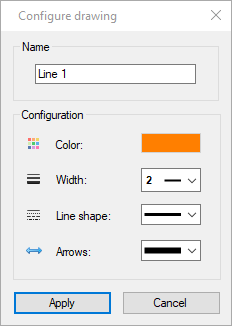
You can also right click the drawing and select to open the configuration dialog.
Options and measure labels
Currently the options and measure labels are not avaiable in the annotation pane and are accessed through the context menu.
Visibility profile
Drawings have a visibility profile that controls their opacity throughout the video.
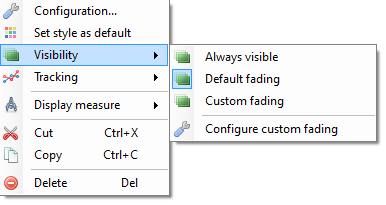
New drawings start with the default opacity options set in . Each drawing can then be configured to use different visibility options.
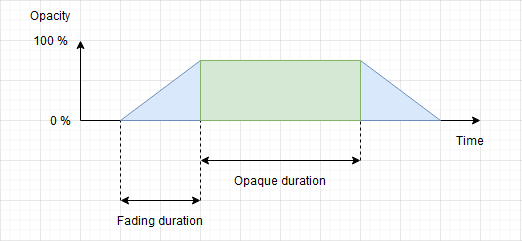
In general terms drawings have a fade-in ramp, an opaque section and a fade-out ramp. The default options make drawings fully visible on their key image and fade in and out of the neighboring frames. When drawings are tracked they stay opaque during the section of video where they are tracked.
Always visible
With this option the drawing is visible for the entirety of the video. The opaque duration and fading duration options are ignored.
Warning
The drawing is still attached to the key image it was added to. It will be deleted if the parent key image is deleted.
Default fading
With this option the drawing uses the default opacity configuration set in .
Custom fading
With this option the drawing uses a custom configuration defined through the Configure custom fading dialog.
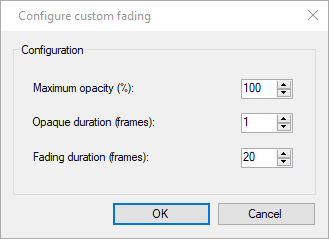
Maximum opacity (%)
This option controls the opacity used during the opaque section. A value of 100 % means the drawing will not let the background show through. A value less than 100 % means the drawing will be somewhat transparent.
Opaque duration (frames)
This option controls how long the drawing stays at its maximum opacity level before fading out. This section starts at the keyframe onto which the drawing was added.
Fading duration (frames)
This option controls the duration of the ramps before and after the maximum opacity until the drawing becomes completely invisible.