User interface
The following screenshot shows the main elements of the Kinovea user interface. These elements are then described in more detail in the sections below.

The main menu
The main toolbar
The navigation pane
The main area:
The status bar
Main toolbar
The main toolbar provides quick access to screen organization.
|
Opens a video |
|
Saves annotations to the current KVA file |
|
Toggles the navigation pane visibility |
|
Closes screens and shows the browser view |
|
One playback screen |
|
Two playback screens |
|
One capture screen |
|
Two capture screens |
|
One playback screen and one capture screen |


Navigation pane
The navigation pane is on the left hand side of the main Kinovea window. It provides access to the file system and connected cameras.
To show or hide the navigation pane use the menu , or the shortcut F4.
It has the following tabs:
|
File system |
|
Shortcuts |
|
Cameras |


File system
The file system tab shows a tree view of the folders on your computer. The bottom part of the tab shows a list of supported files found in the selected folder.
Shortcuts
The shortcuts tab shows a tree view of bookmarked folders.
To add a shortcut, right click the folder and choose .
Cameras
The cameras tab shows a list of the cameras currently connected to the computer and a history of recently recorded videos.
The Manual connection button opens a dialog to manually add network cameras or camera simulators.
See Capture for more information about connecting cameras.
Video player
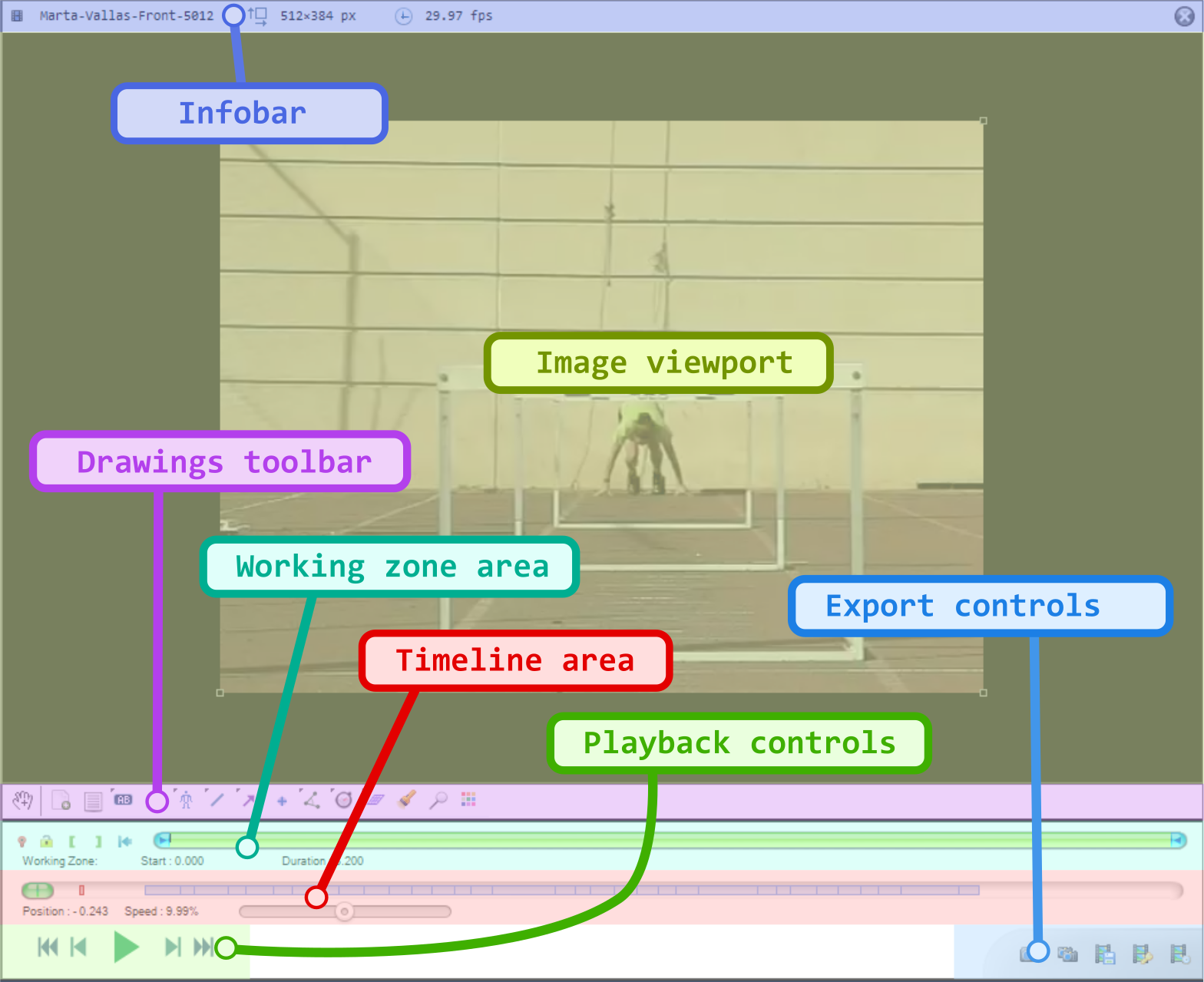
When opening a video file, Kinovea functions as a video player with annotation capabilities.
The following screenshots link directly to the corresponding documentation topic.
Playback, frame by frame and kinograms
Annotations

Measurement
Tracking

Video capture
When connecting to a camera or video capture device, Kinovea functions as a video capture tool.

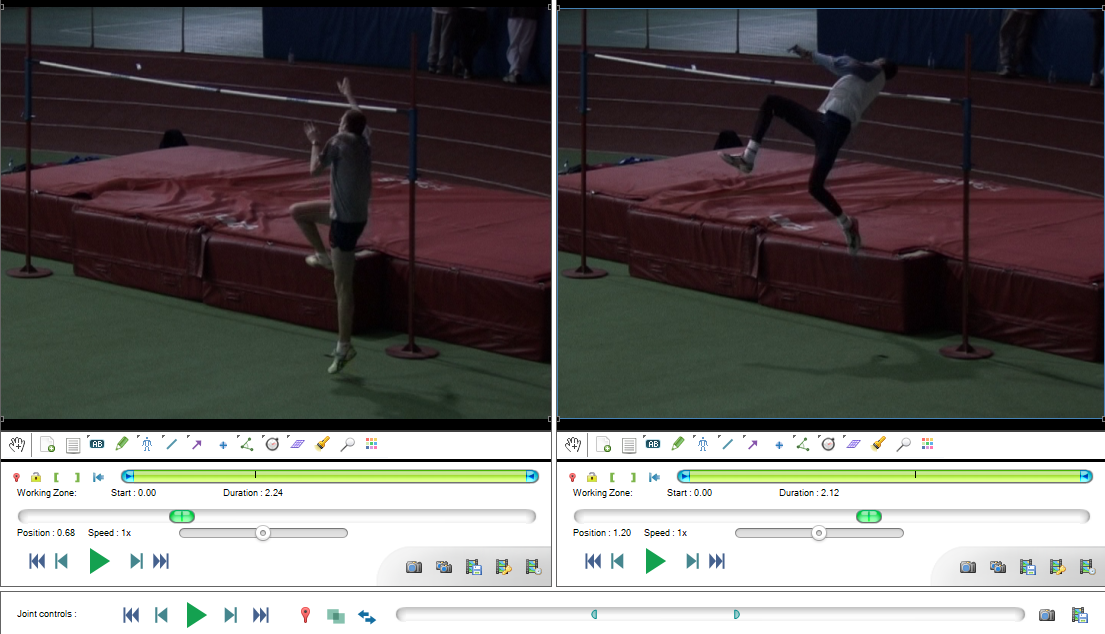
Dual mode
It is also possible to have two playback screens, two capture screens, or one of each side by side.
Browser view
When using Kinovea without any video opened or camera connected, it functions as a file browser.

Status bar
aiue