Machine vision cameras
Installation
Machine vision cameras are supported via a plugin distributed separately from the main Kinovea download.
Download
Kinovea.GenICam-<version>.zip.Unzip the archive somewhere and copy the
GenICamfolder into Kinovea application data folder under thePlugins\Camerasub-folder. You can find the application data folder via Kinovea menu .You must still install the drivers and software from your camera vendor separately. If the installer for the vendor runtime or SDK has various options make sure to check the options mentioning “GenICam” or “GenTL”.
Restart Kinovea.
Supported devices
Cameras from the following vendors are reported to work:
Allied Vision
Basler
Baumer
Daheng imaging
IDS
Teledyne FLIR
Vision Datum
Known issues:
With IDS cameras, reducing the image resolution may result in a black image.
Daheng cameras using GigE interface may not work (USB 3 cameras do work).
When using two Teledyne FLIR cameras of the same model at the same time it can crash. One camera should work.
Configuration
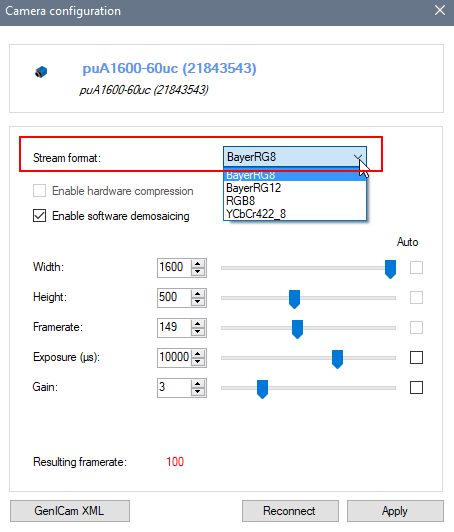
Stream format
The available stream formats depend on the brand and model of the camera.
The suggested workflow for color cameras is to use a raw stream format (for example BayerRG8) and enable software demosaicing to reconstruct color images on the fly.
Tip
Do not use higher bit depth formats (for example Mono12 or BayerRG16) as Kinovea doesn’t use the extra information. They get converted down to 8 bit and will just consume bandwidth for no additional benefit.
Enable hardware compression
This option is available if the camera supports hardware compression.
Enable software demosaicing
This option can be used when the stream format is a raw format (for example BayerRG8) to reconstruct a color image on the fly.
Note
When using a non raw stream format the camera is performing the demosaicing itself on the camera hardware. This is not necessarily faster than doing in on the computer and it requires 3 times the bandwidth to transfer the color images. The top frame rate advertised by the vendor is usually for a raw stream format.
It is also possible to not enable this option, save the raw stream format to disk, and only reconstruct the color information later when loading the video in the player.
To enable this workflow go to , and check Record uncompressed video. When reading the video back choose the appropriate option under the menu . This option creates enormous files.
Width
The width of the images. This usually has no effect on the maximum framerate possible as the cameras always read entire sensor rows.
Height
The height of the images. This usually does impact the maximum framerate possible as only the required rows are read from the sensor.
Frame rate
The target frame rate. Whether this frame rate is actually reached or not depends on the stream format, image size, exposure time and the camera hardware. If the frame rate cannot be sustained, the Resulting frame rate value will be displayed in red.
If the Auto checkbox is checked, the camera will ignore the value and always send the maximum frame rate possible based on the rest of the configuration and the camera hardware. If the Auto checkbox is not checked, the camera will use at most the configured value, if it is possible for the hardware to do so. The manual configuration can be interesting if you want to use a specific frame rate that is less than the maximum possible.
Note
After changing the image size or stream format you must click on Reconnect for the maximum frame rate information to be updated.
Exposure (µs)
This is the amount of time the sensor is exposed, in microseconds. Changing the exposure duration lets you find a tradeoff between motion blur and light requirements. Lowering this value reduces motion blur but increase the amount of light required to capture the scene.
This value is a limiting factor for the framerate. For example a value of 20 milliseconds implies that there cannot be more than 50 images per second captured.
Gain
This is the amount of amplification of the signal captured on the sensor. Increasing this value increases the apparent brightness but can introduce noise in the image.
This value has no impact on the framerate.
Resulting frame rate
This value is the actual frame rate at which the camera will send images, based on the other values and the camera hardware capabilities.