Introduction
Supported devices
Kinovea supports the following broad categories of cameras and capture devices:
DirectShow compatible devices.
Webcams and other USB 2.0 cameras, HDMI capture cards and IEEE1394 camcorders.
-
High quality and/or high speed capture devices. USB 3.0 Vision or GigE Vision devices compatible with the GenICam standard.
Network cameras and smartphones.
Anything that can serve MJPEG streams (RTSP streams are not supported).
-
A virtual device for testing purposes.
These sub-systems work alongside each other and you may connect multiple devices of different types at the same time.
You can actively stream up to two cameras in a single instance of Kinovea. If you need more than two cameras or if you prefer to dedicate each camera to its own window, you can run multiple instances of Kinovea at the same time and connect one in each instance.
Listing connected cameras
While no capture or player screen is loaded, the main area of Kinovea displays the browser view.
To view the list of cameras currently connected to the computer select the camera tab in the navigation pane. Kinovea will start monitoring the system to detect connected cameras and the browser view will display thumbnails of the discovered cameras.
When this tab is selected and no capture screen is yet open, Kinovea will constantly monitor the system to detect new cameras. When a capture or player screen is open, Kinovea stops monitoring for new cameras.

Opening a camera
You can open a camera by doing any of the following:
Double click on the camera thumbnail in the browser view,
Double click on the camera name in the camera list view,
Drag and drop the camera from the camera list view to the browser view,
Drag and drop the camera from the camera list view into an already opened capture screen,
Right click the camera thumbnail and choose .
Camera name and icon
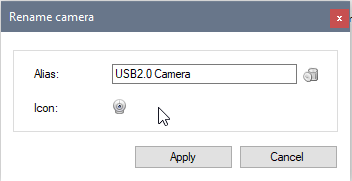
You can rename or change the icon for the camera by right-clicking the thumbnail and choosing .
Camera settings
When you modify the settings of a camera, these settings are saved and will be applied automatically the next time you open that camera.
You can reset these settings by right-clicking the thumbnail and choosing .